New look & new stats for the MoreFrom.Me account area


If you log in to your 'My Account' and go to the 'Manage my MoreFrom.Me' area you'll notice it's had a facelift. We've added a new 'dashboard' style stats area. You can now see:
  • How many visits your MoreFrom.Me has had
  • How many sales you've made
  • & How much commission you've earned
Below that you'll also see an at a glance summery of your 'site status' - it shows you what tools and features you are using and which ones you've yet to try.


The other thing we've added is a section that will show you what products people are looking at on your MoreFrom.Me


This is just the start, we plan to add more data and reporting here to help you manage your MoreFrom.Me

Tip No.9 - Promote your MoreFrom.Me with website links and banners

If you have a website of any description, why not put a link on that site to your MoreFrom.Me? A prominent link will let people discover that you now sell 1000s of tech products. Don't panic if you're not a skilled web designer, we've prepared the code and graphics you need to make it easy.

We've added a new section called Links and Widgets to the MoreFrom.Me management area of your My Account. We plan to add more and more banners and widgets to this area in the coming months. The idea is to make it easier for you to shout about your MoreFrom.Me site.

At the moment you'll find the line of code you need to add a simple text link, shown in the example below.


There's also several different banners in various sizes, colours, again a couple of these are shown below.

How to grab the code for these banners
Find under 'My Account'
Log in to your 'My Account' and go to the 'Manage your MoreFrom.Me' area. In the menu on the lefthand side, under tools, click on the 'Links and Widgets' link. Here you'll find all the code you need to add a link or banner.

It's great to talk

Posted By Brian Trevaskiss

The other week I asked; What can we do to improve the way MoreFrom.Me is working for you?. I've had some great feedback emails and spoke on the phone with a lot of MoreFrom.Me-ers. There's been some good ideas for new features and things we can work on going forward, I'll cover those in future posts.

One of the reoccurring themes was 'I like the idea but how do I promote my MoreFrom.Me'.

I'd like to share with you the advice I gave to one MoreFrom.Me-er in particular. This is the feedback that came in:

'I have to be honest, my initial interest in http://www.morefrom.me/from.aspx?me=michealcolhoun has left me a little confused about how to promote it'.

Like a lot of early MoreFrom.Me-ers, Micheal has a background in IT and is running his own small business. His company is called Colhoun Technology Solutions that has a website at http://www.cts-ni.com/. To help Micheal, I explained what I would do if I were in his position. Here's an extract from my reply to him, I hope you find it useful too.
I'll try and put myself in your shoes and show you what I would do to promote MoreFrom.Me/MichealColhoun. I apologies now if I've made some wrong assumptions about your business -

If I were you, I'd set up a new MoreFrom.Me using your business name - You can choose to have a .Me or a .Biz version of MoreFromMe, so I'd go for www.morefrom.biz/Colhoun or www.morefrom.biz/cts-ni

I'd then skin it to match your http://www.cts-ni.com/ site - I'd put the same logo on the top of the site and choose the same colour scheme.

I'd then pick the products I'd like to appear on my home page - by adding them as recommended products.

To enhance the site further, I'd add short reviews of these products - taking the content from http://www.cts-ni.com/

To show you what can be achieved - in terms of customisation I've produced this test site - http://www.morefrom.me/default.aspx?me=colhoun_test

You can see the recommended products on the homepage and the star rating I've given them. When you click through on a recommended product you'll see (as in this example) that the review is highlighted, this only happens on the MoreFrom.Me that belongs to the reviewer.

Next I would write a news post on www.cts-ni.com and send an email out to everyone I know - Telling them I've recently partnered with MoreFrom to sell online. I'd say I can now offer a massive range of tech products for sale (over 100,000).

I'd then post links to this news on Facebook and Twitter.

I'd then set about putting links on www.cts-ni.com that take people to http://www.morefrom.me/default.aspx?me=colhoun_test

I'd put a banner on the home page - we've produced some code for banners (they are in the manage your MoreFrom.Me area under Banners & Widgets). Or you could produce your own 'Shop Online' banner in your own graphic style.

Going forward, every time I added a review to www.cts-ni.com I'd include a 'buy it now' link that went to the product page of the http://www.morefrom.me/default.aspx?me=colhoun_test

Basically it's about linking your existing site and content to your MoreFrom.Me - I believe it will work well. Even the big brands like HP and Sony have separate info and shop websites. We've also just added a function that lets you have a link back from your MoreFromMe to your own site - that will help people get back to your main site.

If you'd like to discuss anything here or chat about MoreFrom.Me, send me some feedback or leave a comment below.

What can we do to improve the way MoreFrom.Me works for you?

How are you getting on with your MoreFrom.Me?

Is there anything you'd like to see changed, added or removed?

It's a new idea and we're keen to understand what we can do to make your MoreFrom.Me work better for you.

We're constantly developing new features so what would be on your wish list? Anything you can tell us will help shape the way MoreFrom.Me evolves.

Is anything stopping you, when it comes to using or promoting your MoreFrom.Me? We might be able to change it to make it work for you.

We're looking to accommodate your ideas and remove any barriers, so it will be great to hear from you.

If you have any feedback, just let us know in comments below or send us your feedback and we'll be sure to get back to you.

Tip No.8 - Send an email of your recommended products

With this email generator you can really show people what you're all about. It simply turns the products you've added to your list of recommended products in to an email. You can then forward the email on to your contacts and they can click through to your MoreFrom.Me.


So if you're a business that specialises in CCTV equipment you can send your customers an email of just the products you recommend. Or if you're Apple accessories expert, your email will be filled with Mac goodness only.

How to get an email of your recommended products
Find under 'My Account'
As usual you'll need to log in, via the My Account link and head to 'Manage your MoreFrom.Me', from the right hand column, choose 'My Recommended eMail'. There's a brief summary and a 'see how My Recommended Products email looks' link. A click on this link will show you your latest recommended products in the email format with your MoreFrom.Me branding at the top. To create the email click on the 'Send me My Recommended Products email' button. You'll then receive an email to forward on to your contacts.

You can change the content of the email by adding and removing products from your 'My Recommended' list.

No.7 - Likes, Tweets and sharing to promote your MoreFrom.Me

In this tip, we want to cover the contents of what we call the 'share box'. We need to stress that all the share functions in this box are set up to send links that go to your MoreFrom.Me. Any sharing you do from here will send people to you, so you won't miss out on any commission.
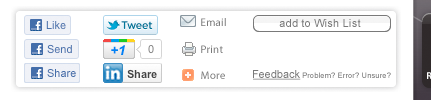
You'll see this box on your MoreFrom.Me product pages, it contains lots of great ways to promote your MoreFrom.Me. When you find a product you'd like to tell people about on, these buttons provide a quick and easy way to do so.

Some of 'share box' contents may be familiar to you, but in this tip we're going to look at each button individually.

The Facebook 'Like' button
Probably the most familiar Facebook button there is and the most popular. The thing to remember with the 'Like' button is - if you don't type anything in to the comments box, nothing will appear in the 'News Feed' of your Facebook friends. So it won't help to promote you MoreFrom.Me

The Facebook 'Share' button
A click on the 'Share' button will take you to a Facebook page, you get a bit more control over what you are sharing with the 'Share' button. You can choose to add a comment or not. You can edit the heading and sub heading text we provide. You can also choose what thumbnail photo to use (or choose to show no thumbnail at all). You can also add a Facebook share button to your browser.

The Facebook 'Send' button
Probably the least familiar Facebook button, but one of the best for promoting your MoreFrom.Me. The 'Send' button give you the option to send a private Facebook message to your friends. You can choose to send to a number of friends or just one. You can also send to any groups you are a member of, so you can reach a much wider group of people. From the 'Send' button you can also add individual 'non Facebook' email addresses - so you can send to anyone. The message people get from you will contain an image and link to your MoreFrom.Me - so it looks great.

The Twitter 'Tweet' button
Hit the 'Tweet' button and a Twitter box will appear. The description text of the product and a link to your MoreFrom.Me will already be in the box. You can then edit it or add your own comment. The link URL will automatically be shortened when you press 'Tweet'.

The Google '+1' button
The easiest way to describe the Google '+1' button is that it does all the things the Facebook buttons do in one. If you're logged in to your Google account, the +1 button will record that you liked the product when you click the button. This is not much use when it comes to promoting your MoreFrom.Me. If you have set up the 'Google +' element of your Google account you can do all sorts of fancy sharing. You'll get the option to post a comment, and be able to choose which 'circles' see it, you can choose all circles and even to make the comment public.

The LinkedIn 'In Share' button
A click on 'In Share' button will take you to a LinkedIn screen where you can add a comment and share details in pretty much the same way as you do with the Facebook 'Share' button. The details of a product you share will be posted as a status update on your LinkedIn account. The people you are connected with on LinkedIn will then be able to find out about your MoreFrom.Me and follow the link to take a look.

The 'Email' button
Not everyone uses the social networks we've talked about, but pretty much everyone has an email address. This button could well be your best form of promotion. Press the 'Email' button and you can send a quick email to anyone right from the page. As with the social media share buttons above, the details of the product are copied into you email text - ready to go. From the 'Email' button you can also use your saved contacts in Google Mail, Yahoo!, Hotmail etc.

The 'Add This' 'More' button
This is the white + on an orange background button. Behind this button you'll find the share options for hundereds of weird and wonderful social networks. So if your favorite share button is not in our 'share box' there's a good chance it will be in here.

These share options are not just on the product pages of your MoreFrom.Me. You'll also find them at the top of your 'category' and 'sub category' pages. So if you simply want to tell someone that they can choose from over 500 laptops on your MoreFrom.Me. You can share a link to your notebooks page.

If all this sounds too 'modern' for you, you can always press the print button and hand deliver a copy of your favorite product page to your potential customer!

Good luck with your promotion, let us know if you find an interesting way to promote your MoreFrom.Me or if you can think of something we can add to help you promote.

Tip No.6 - Promoting your MoreFrom.Me with your own best sellers email

We've talked a lot about personalising your MoreFrom.Me, now it's time to talk about promoting it. There's lots of ways to tell people about your MoreFrom.Me, too many for one tip, so in this first one we'll talk about email.

Now you won't be too popular if you email everyone in your contact list everyday, but a few carefully selected emails every now and then are a great way promote your MoreFrom.Me. To make it easy we've developed a personalised version of our popular best sellers email. We send an email to our customers every Friday with the weeks best selling, most looked at and reviewed products. It's a great way to keep people up-to-date with popular tech gadgets - without a pushy sell, sell, sell email. You can have the same email to send to your contacts, with your name at the top and with all the links going to your MoreFrom.Me


How to get your personalised best sellers email
Find under 'My Account'
Log in to your 'My Account' and go to the 'Manage your MoreFrom.Me' area. Click on the 'Marketing Email' link and under the heading 'Your own marketing email' you'll see the details for the best sellers mail. Click on the 'see how your Best Sellers email looks' to see a sample e-mail. Click on the 'Send me my best sellers email'. Your version of the best sellers email will be sent to the email address you used when you set up your MoreFrom.Me

When your mail arrives in your inbox you can simply hit forward, add your own content or message and send it to your contact list. If you're not afraid of code, you could cut and paste the email code in to an editor and add your own intro text and anything else, before sending it out.